Using the Web App
The BuyersMarket web app is your primary tool for comparing grocery prices across Jamaica. Access it from any device with a browser — no download required.
"The web dashboard is where all the action is! Search products, spot deals, compare stores, and even submit prices — all from your browser!"
Access the Dashboard
Visit buyersmarket.app/dashboard in any browser. Works on phones, tablets, and computers.
📋 Dashboard Overview
The web dashboard has four main tabs, each designed to help you make smarter grocery decisions:
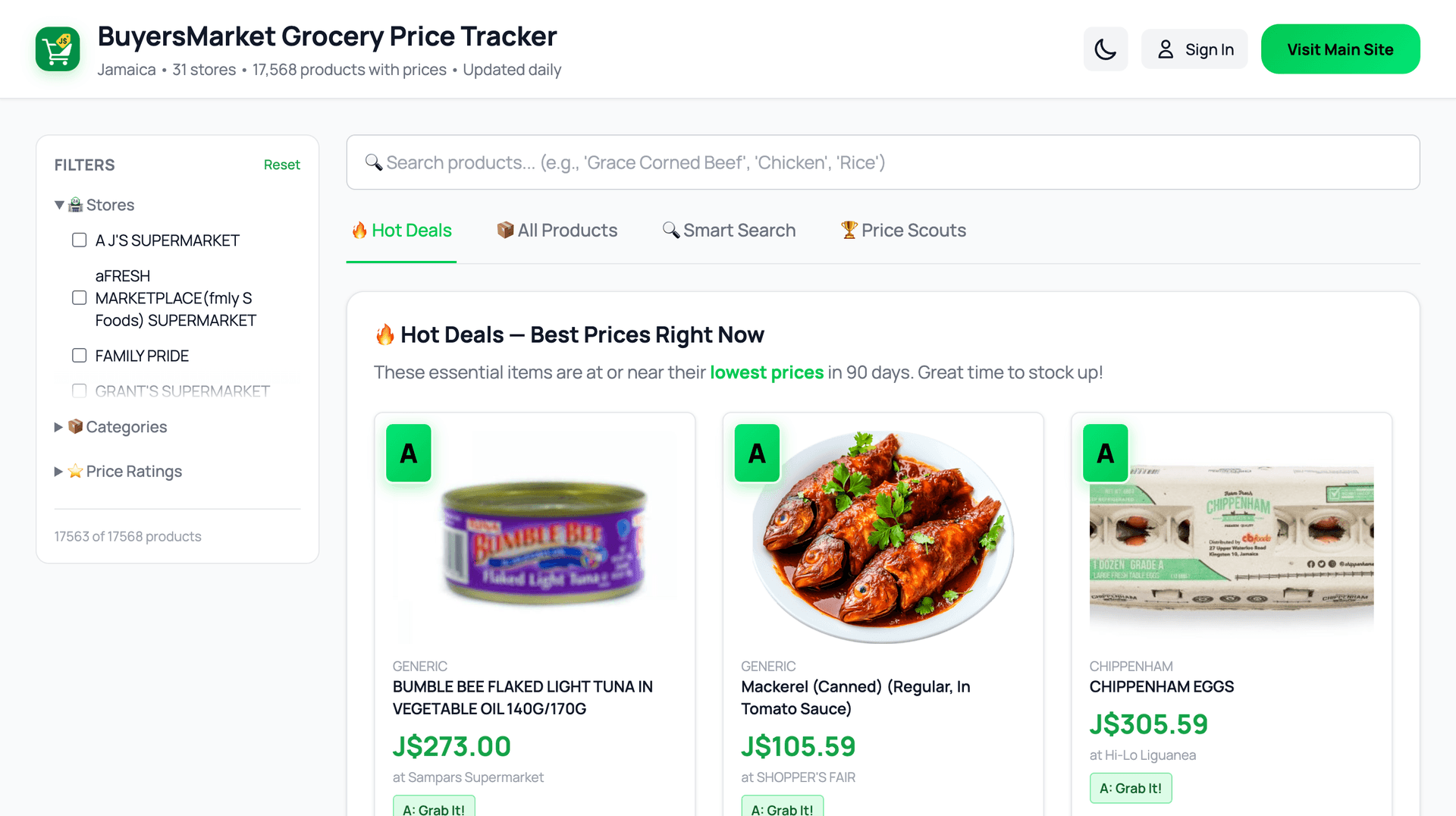
The BuyersMarket dashboard with Hot Deals, search, and product cards
🔥 Hot Deals
Products currently at their lowest prices (A-rated). This is the first thing you see when you open the dashboard. Check here before every shopping trip!
📦 All Products
Browse and search through all 37,000+ tracked products. Filter by store, category, or A-B-C rating. Submit price updates directly from each product row.
🔍 Smart Search
Ask questions in plain English (e.g., "cheapest rice in Kingston") or write custom SQL queries for advanced analysis. Powered by AI.
🏆 Price Scouts
View the community leaderboard, track your points, and see your submitted prices. Earn badges and compete with other shoppers!
Searching for Products
There are two ways to find products on the dashboard:
Quick Search (All Products tab)
Type any product name in the search bar at the top of the All Products tab. Results update as you type, showing product name, store, current price, and A-B-C rating.
Example: Type "coconut milk" to see all coconut milk products across stores.
Smart Search (AI-powered)
Go to the Smart Search tab and ask questions in plain English. The AI understands natural language and converts your question into a database query.
Example: "Which store has the cheapest chicken breast right now?"

Pro Tip
The Smart Search tab also has a SQL Editor for advanced users. If you know SQL, you can write custom queries to slice and dice the data however you want!
Finding the Best Deals
The Hot Deals tab shows you products that are currently significantly below their typical price.
Green (A Rating) — Grab It!
Current price is significantly below the typical price. This is the best time to buy.
Orange (B Rating) — Fair Price
Current price is in the normal range — close to what this product typically costs. Buy if you need it.
Red (C Rating) — Hold Off
Current price is above the typical range. Wait if you can.
Hot Deals data is updated daily. Bookmark the dashboard and check it before your weekly shop to catch the best prices!
Submitting Prices
Help the community by reporting prices you see in stores. You'll earn points for every verified submission!
Go to the All Products tab
Find the product you want to update and click the Submit Price button
Enter the price you saw and the store where you saw it
Click Submit — you'll earn points once the price is verified!
You need to be signed in to submit prices. Click the Sign In button at the top of the dashboard to log in with your BuyersMarket account.
Marcia Says
You can also submit prices via WhatsApp! Send a photo of a shelf price tag to our WhatsApp bot and it'll use AI to extract the product and price automatically.
Price Scouts & Leaderboard
Every price you submit earns you points. Compete with other shoppers on the community leaderboard!
How Points Work
Earn 5-25 points per verified price submission. Points are awarded after your submission is validated. Keep a streak going for bonus multipliers!
Badges
Unlock badges as you earn points: Bronze (500 pts), Silver (2,000 pts), Gold (5,000 pts), and Diamond (10,000 pts).
Leaderboard
Check the Price Scouts tab to see where you rank among other community contributors. Leaderboard resets monthly, so everyone starts fresh!
🔑 Account & Sign-In
🌐 One Account, All Platforms
Your BuyersMarket account works across the web app and mobile apps. Create it once and use it everywhere. No separate registrations needed.
👤 Signing In on the Dashboard
Click the Sign In button at the top of the dashboard. A modal will open with two tabs:
- Sign In tab — Enter your email and password to log in to an existing account
- Sign Up tab — Enter your email and a password (minimum 6 characters), then click "Create Account"
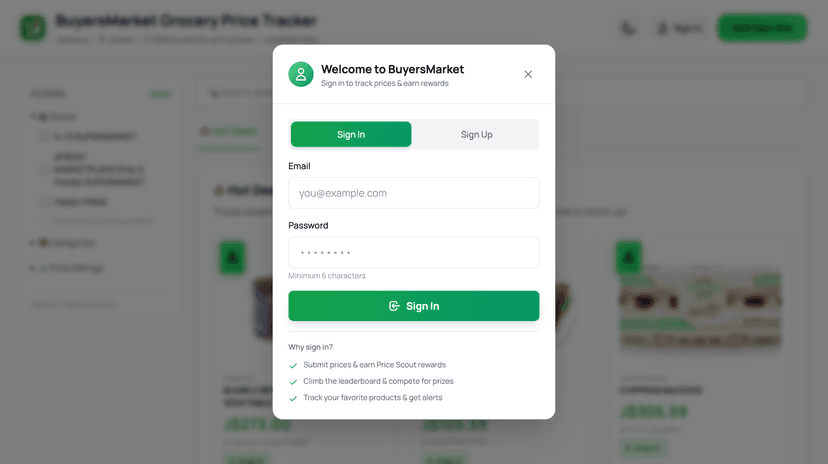
Sign In tab — log in with your existing account
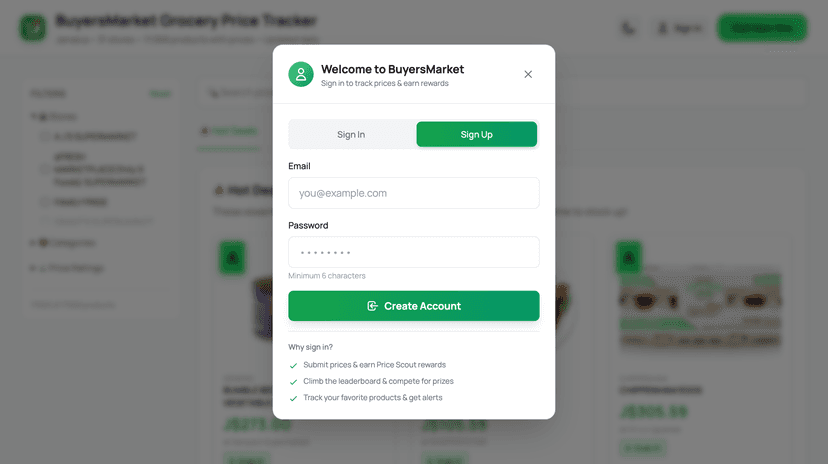
Sign Up tab — create a new account
🔓 What You Can Do Without Signing In
You can browse all prices, search products, view Hot Deals, and use Smart Search without an account. Sign in when you're ready to contribute prices and earn rewards.
💡 Tips for Power Users
"Bookmark the dashboard on your phone's home screen! On iPhone, tap Share then 'Add to Home Screen'. On Android, tap the menu and 'Add to Home screen'. It works just like an app!"
🌙 Dark Mode
The dashboard supports dark mode. Toggle it using the theme switcher at the top of the page.
📱 Mobile-Friendly
The dashboard is fully responsive. Use it on your phone while you're shopping in-store to check prices in real time.
📊 Price History
Click any product to see its 90-day price history chart. This helps you understand price trends and the best times to buy.
💬 WhatsApp Bot
Prefer messaging? Send price photos to our WhatsApp bot for hands-free price submissions while you shop.
Ready to Explore?
Head to the dashboard and start browsing prices right now. No account needed to get started!
Open Dashboard🎉 Keep Exploring!
Learn more about BuyersMarket features:
Still Need Help? 🤔
Our team is here to help you get the most out of BuyersMarket. Reach out anytime!